How to Get the Transcript of a YouTube Video (3 Easy Ways)
Whether you're studying a lecture, quoting an interview, or repurposing a video into an article, you need the words as text. Here are the three practical ways to get a YouTube transcript, from the built-in option to the fastest one.
Method 1: YouTube's built-in transcript panel
YouTube itself can show a transcript for most videos:
- Open the video on youtube.com (desktop).
- Below the title, click the …more link in the description.
- Scroll down and click Show transcript (see YouTube's official help page on transcripts for details).
- The transcript opens in a side panel with timestamps.
The catch: you can't download it, copying is painful (it copies line by line with timestamps mixed in), there's no export to SRT/VTT, and on mobile the option is buried or missing. It's fine for skimming — not for actually using the text.
Method 2: A free online transcript generator (fastest)
Online tools fetch the same caption data and give you clean, usable output in one step:
- Copy the video URL from your browser or the Share button.
- Paste it into the TranscriptFlow transcript generator.
- Click Generate Transcript — the full timestamped text appears in a few seconds.
- Copy it with one click, or download it as TXT, SRT or VTT subtitles, or as PDF and Word documents.
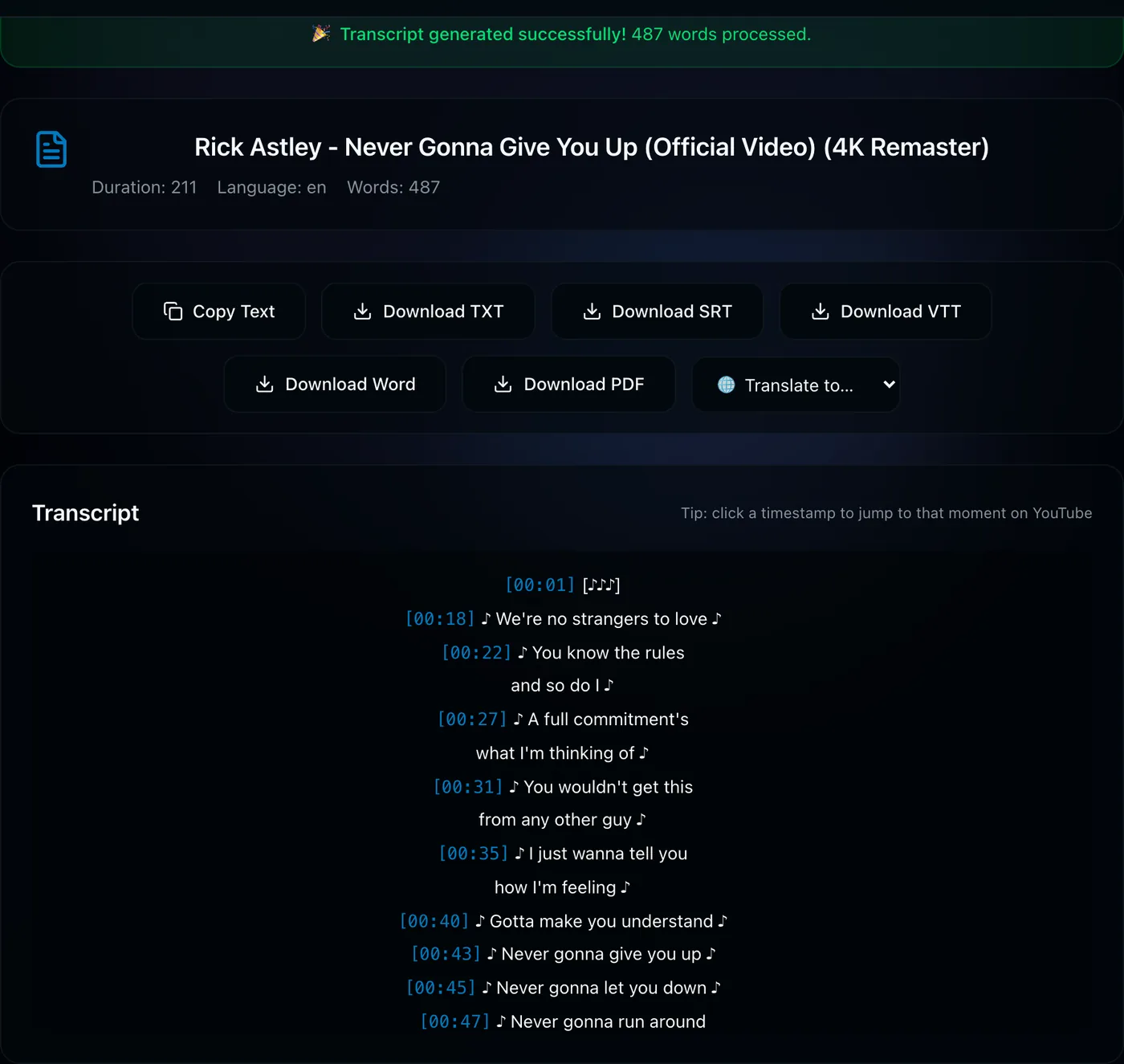
Why this beats the built-in panel: one-click copy of the whole transcript, downloadable subtitle files, clickable timestamps that jump into the video, and the option to translate the transcript into another language. No signup, free.
Get a transcript now →Method 3: Browser extensions
Chrome extensions add a transcript button directly on the YouTube page. They're convenient if you need transcripts many times a day, but they require installation, permissions to read the pages you visit, and they only work in that one browser. For occasional use, a web tool does the same job with zero setup.
Which videos have transcripts at all?
All three methods rely on the video's caption tracks, so coverage is the same everywhere:
- Manual captions — uploaded by the creator; the most accurate.
- Auto-generated captions — created by YouTube's speech recognition for most spoken-word videos; quality is good for clear speech.
- No captions — some videos (music-only, very new uploads, or captions disabled by the owner) have nothing to extract. Private videos can't be accessed either.
Frequently asked questions
Is it legal to get a transcript of a YouTube video?
Fetching captions of a public video for personal use — studying, notes, accessibility, quoting with attribution — is generally fine. If you plan to republish substantial parts of someone else's content, you need the rights to do so.
Can I get a transcript with timestamps?
Yes — both YouTube's panel and TranscriptFlow show timestamps. TranscriptFlow's timestamps are clickable links that open the video at that exact moment.
Can I get the transcript in a different language?
If the video offers translated captions, yes — see our guide to translating YouTube subtitles.