SRT vs VTT: YouTube Subtitle Formats Explained
When you export captions from a YouTube video you'll usually choose between two file formats: SRT (SubRip) and VTT (WebVTT). They carry the same words and timing but behave differently depending on where you use them. Here's how to pick — and how to get either file in seconds.
The short answer
Choose SRT for video editors, media players, and uploading captions back to YouTube. Choose VTT when embedding captions in a website's HTML5 video player. When in doubt: SRT.
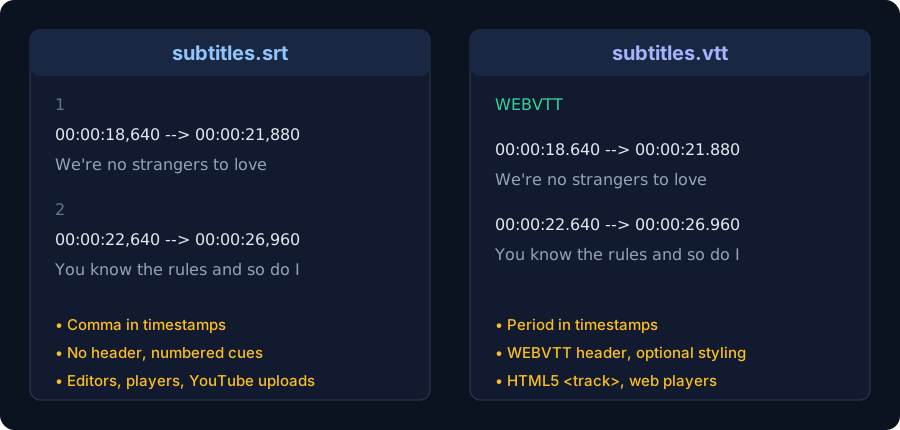
Side-by-side comparison
| SRT (SubRip) | VTT (WebVTT) | |
|---|---|---|
| Born for | Desktop players / editors | The web (HTML5 <track>) |
| Timing separator | 00:00:05,000 (comma) | 00:00:05.000 (period) |
| Header | None | Starts with WEBVTT |
| Styling & positioning | No (plain text) | Yes (cues can be styled/positioned) |
| Support | VLC, Premiere Pro, DaVinci Resolve, CapCut, Final Cut, YouTube uploads | All modern browsers, web video players (Video.js, Plyr…) |
For the full technical details of the web format, see the W3C WebVTT specification.
How to download SRT or VTT from any YouTube video
- Copy the YouTube video URL.
- Paste it into the free subtitle downloader.
- Click Get Transcript.
- Hit the SRT or VTT button — the file downloads instantly, named after the video.
Works with the creator's own captions and with YouTube's auto-generated ones, so nearly every public spoken-word video can be exported. Need just the words? The TXT button gives you plain timestamped text — or grab a formatted PDF or editable Word document instead.

Common uses for downloaded subtitle files
- Editing: import an SRT into Premiere Pro or Resolve instead of retyping captions for a re-edit or clip compilation.
- Web embedding: serve a VTT file next to your MP4 so browsers show native captions.
- Translation workflows: hand an SRT to a translator (or translate the transcript online first) to produce localized subtitles with timing intact.
- Accessibility archives: keep caption files alongside downloaded lectures or training videos.
Converting between SRT and VTT
Because the formats are so close, conversion is trivial — and with TranscriptFlow you don't need to convert at all: just download both formats from the same transcript in one click each.